Hello from the team at Lineup Ninja.
On Thursday 27 August we’re replacing the lists and detail pages across Lineup Ninja with rebuilt ones. That’s your sessions, speakers, tracks, locations, labels and resources, lists of submissions and all the other tables.
This isn’t a new coat of paint. The tables underneath these screens were built a long time ago, and they had reached the point where the things you were asking us for simply weren’t possible in them. Top of that list by a distance: an Add button at the top of the table, rather than one you scroll to the end to reach. Then resizing a column, filters you can see at a glance, and editing a speaker’s details in one go. So we rebuilt them, and they work really nicely now.
Nothing changes for your speakers and submitters, or for the agenda you publish. We’ll make the change overnight, so it’ll be there when you come in on Thursday morning — no downtime, and nothing you need to do.
This will show up on a lot of the pages you use every day, so we wanted to give you a heads up rather than let it surprise you on the morning. Below is where the main things have moved to, and the full walkthrough covers everything else. If there’s something you can’t find, tell us and we’ll point you at it.
At a glance…
- Add is now at the top of the table, and new rows appear at the top of the list
- Your filters and sort order are remembered now. A table opens the way you left it, so if a list looks shorter than you expect, check the filters listed above it
- Click a column name to sort it, and the small arrow next to it to filter
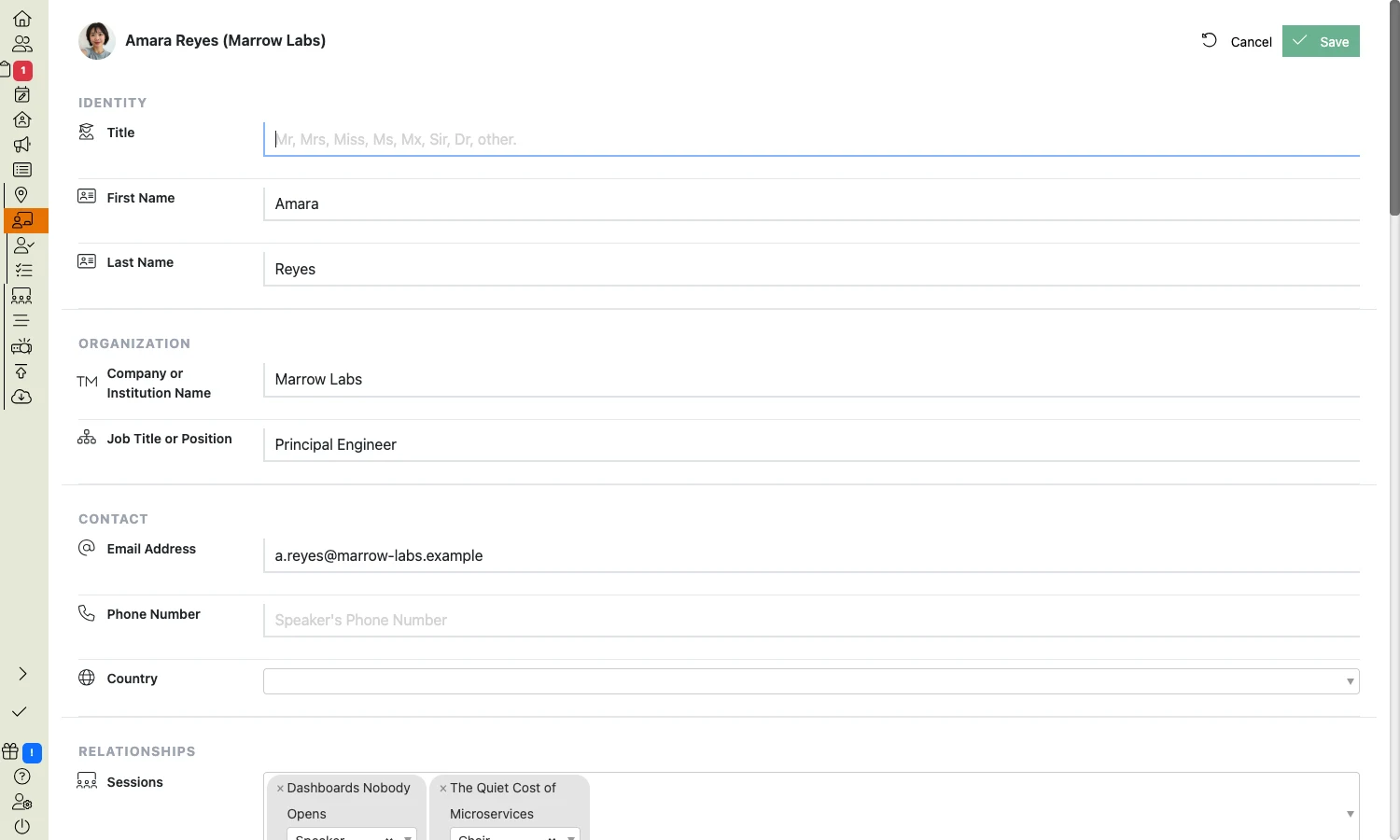
- Opening a speaker or a session gives you one Edit button and one Save button, instead of a pencil on every field
- Bulk actions have moved from below the table to the bar above it. Tick some rows and Actions fills up
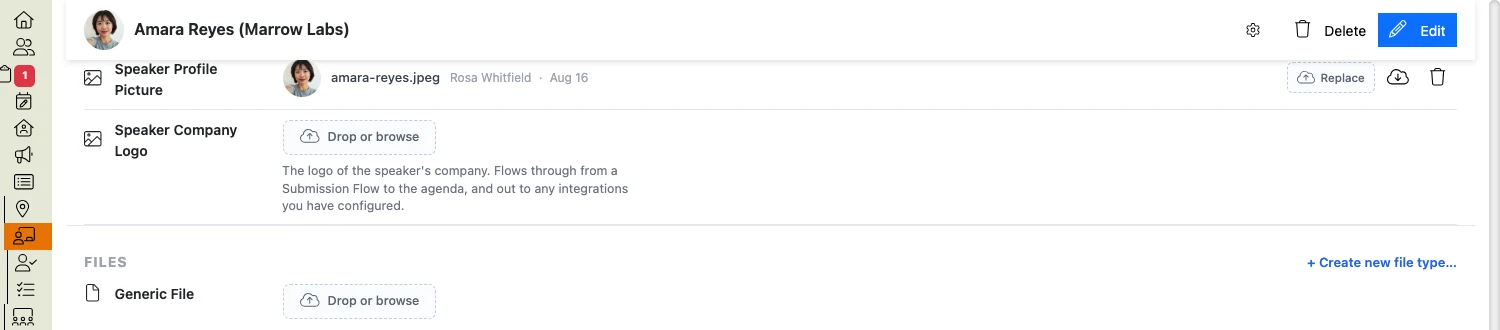
- Files and images are now a list, and every file type you’ve set up has its own place to drop one
- You can now drag a column edge to make it wider or narrower
Add is at the top now
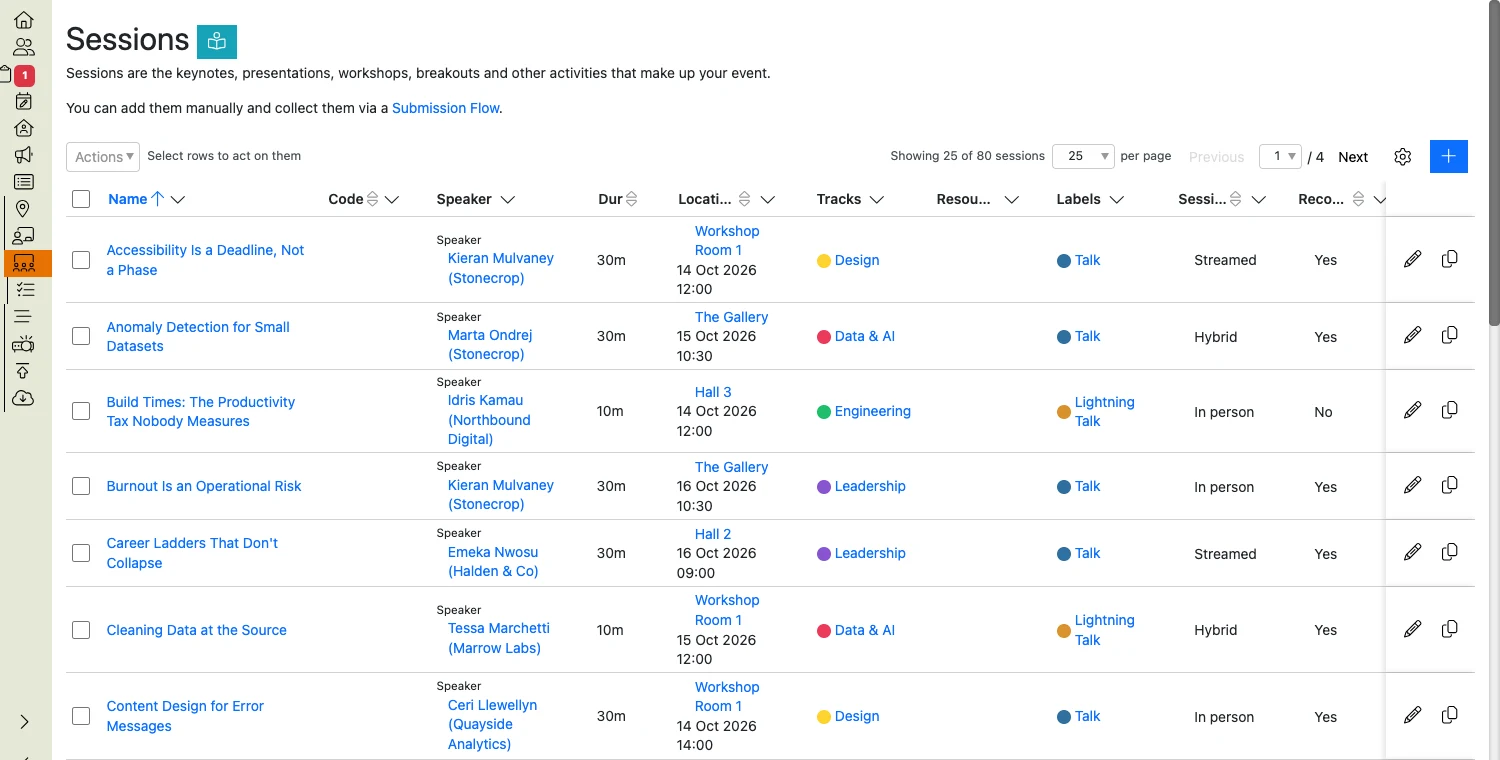
The + button used to sit under the last row. It’s now at the top right of the table, and your new row appears at the top of the list, where you can see it without scrolling.
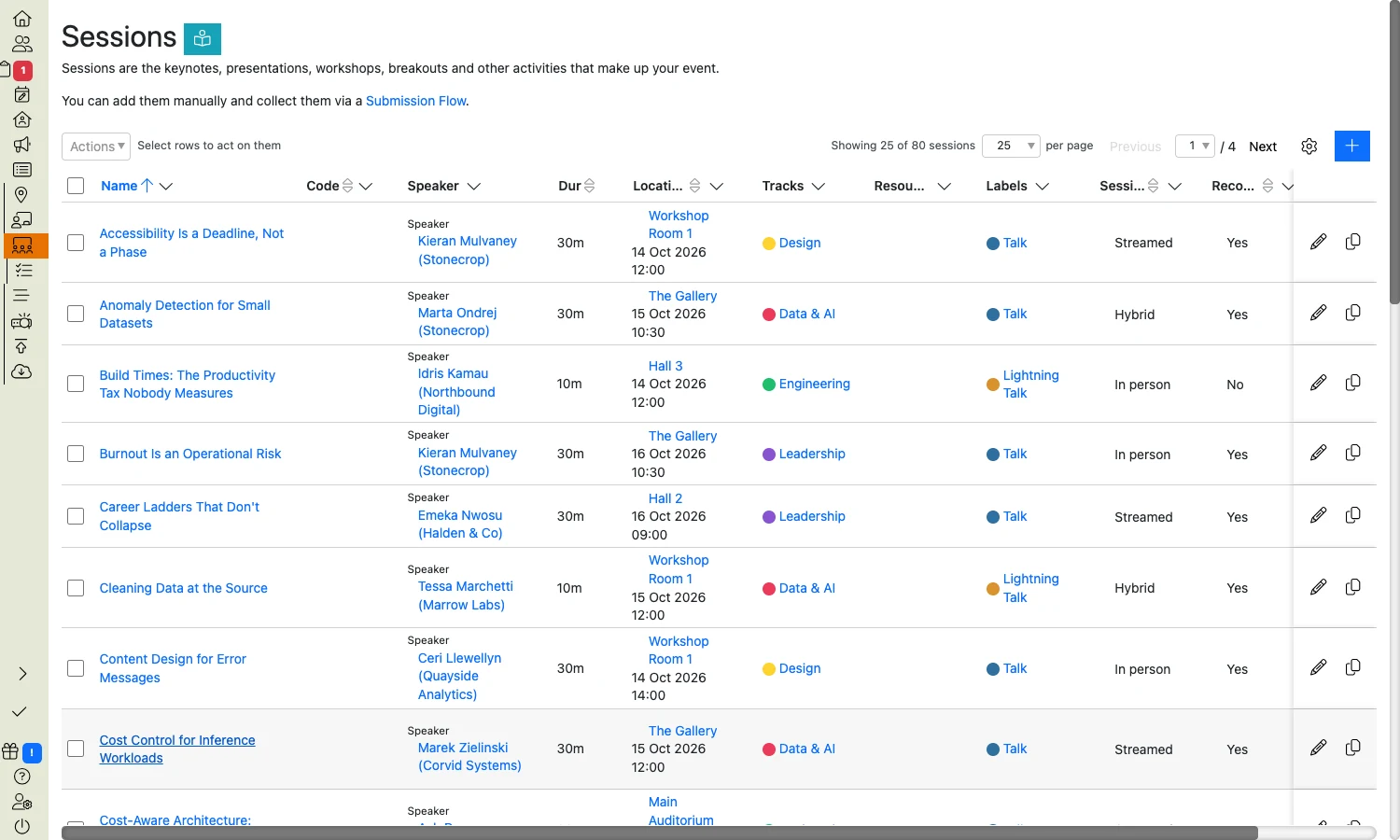
The bar that used to sit under the table — your total, how many the filter has left you with, and how many you’ve selected — is up there too, along with your page numbers and the settings cog. That bar stays with you as you scroll, so on a long list you don’t have to go to the bottom to change page.
Click a column name to sort, the arrow to filter
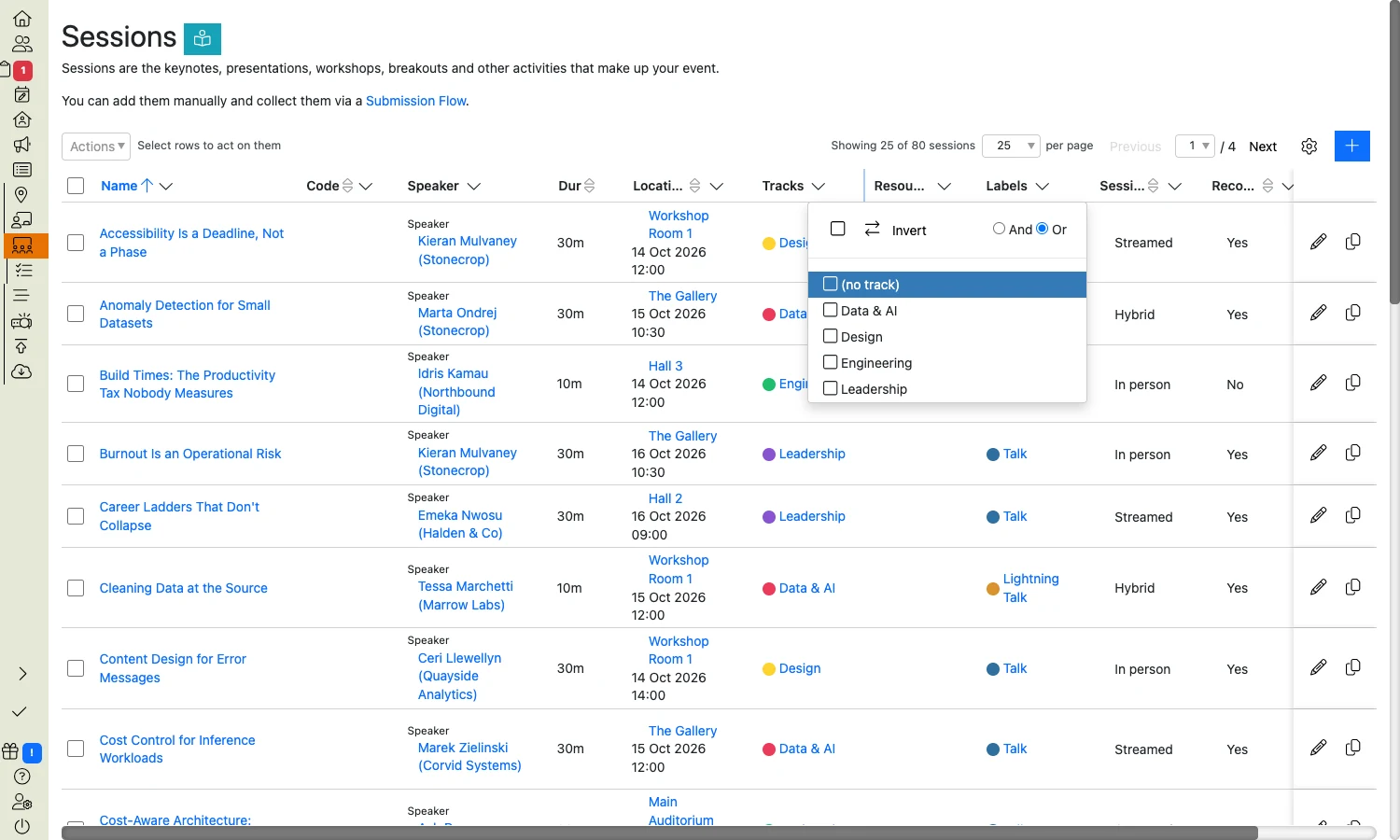
The magnifying glass and the funnel have gone from the column headings. The heading now does both jobs. Click the column name to sort by it — click it again to reverse the order, and again to clear it. Click the small arrow next to the name to filter it.
Whatever you’ve filtered on is then listed above the table, so you can see all of it in one place instead of checking each column in turn. To drop a filter, click the x next to it, or Clear filters to remove the lot.
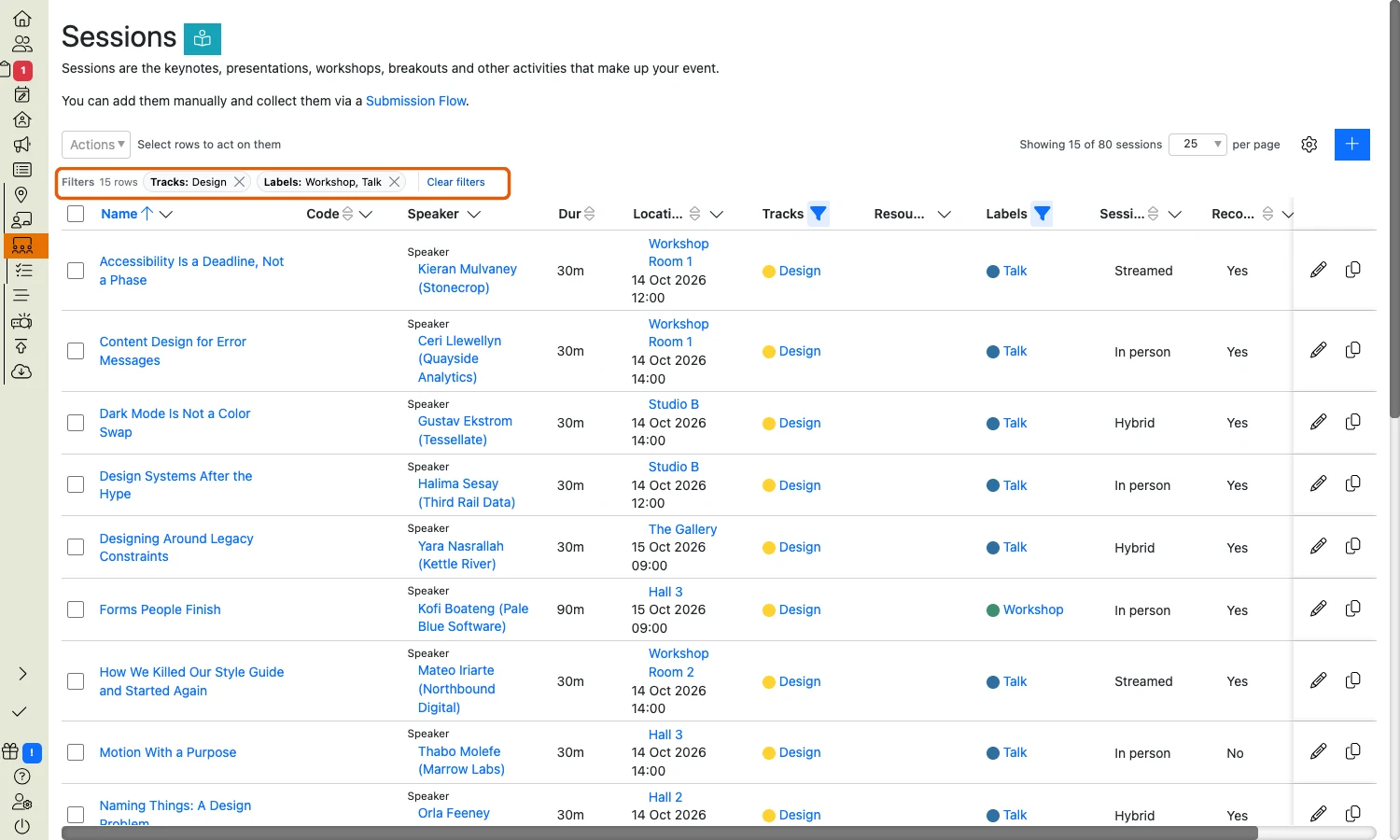
Each table now remembers your filters, your sort order, the tab you were on and your column widths. Come back tomorrow and it’s how you left it — so if a list looks shorter than you expect, the band above the table is the place to check. It remembers this in the browser you’re using, so it won’t follow you to another computer.
One Edit button, one Save button
Open a speaker, session, track, location, label or resource and you get their details to read. To change something, click Edit at the top right, make all your changes, then click Save once.
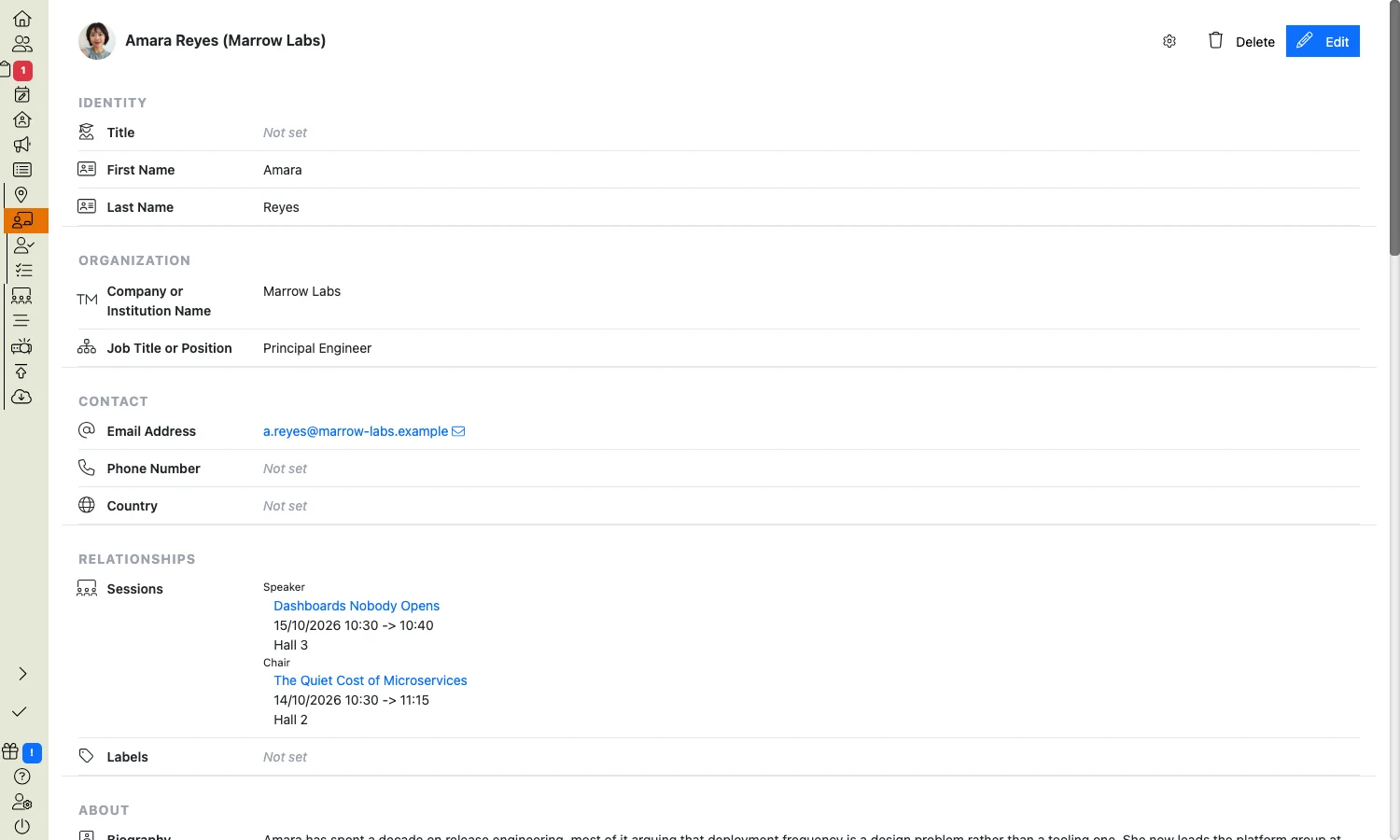
The fields are now gathered into groups — identity, organisation, contact, and so on, with your custom fields in a group of their own — so the order you’re used to scrolling through has changed. Everything that was there before is still there.
If you already know which field you want, you can click straight onto it instead of using the button. That starts editing with your cursor in the right place. If you’ve hidden any fields with the cog, they’re behind Show N more while you’re editing.
Tick some rows and the actions come to you
Bulk actions used to sit under the table. They’re now in the bar above it, so you don’t have to scroll to the bottom to reach them. Actions sits there waiting, next to Select rows to act on them — tick some rows and it fills up with everything you can do to them, alongside a count of what you’ve picked. Selecting rows across several pages still works exactly as it did.
Files and images are now a list
Anywhere you upload — a speaker’s headshot, session slides, your branding, answers gathered on a Submission Flow — files are now shown as a simple list, one line each, oldest first.
Every file and image type you’ve set up now has its own place on the page, whether anything’s been uploaded to it or not, so you drop a file straight onto the one you want rather than picking the type from a menu.
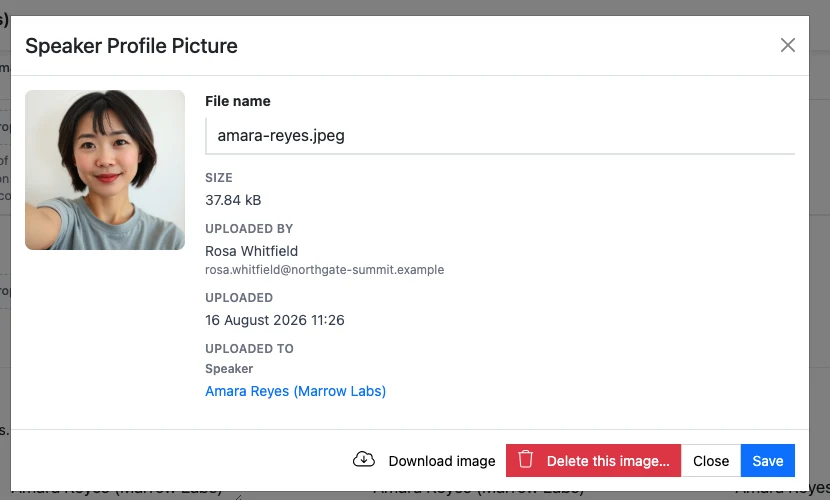
Click a file to see its size and the rest of its details, or to download it.
If that’s more slots than you need, the cog hides the ones you don’t use, and that’s per person — hiding one won’t hide it for the rest of your team. To swap a file for a newer one, delete it and upload again, or drop the new file onto Replace.
You can now resize a column
Drag the edge of any column to make it wider or narrower. The table remembers your widths.
If you’d rather start again, click the cog and choose Restore table defaults. That’s a full reset of the table, not just the widths — it clears your filters, your sort order and your page size too, and puts the columns back the way they started.
What isn’t changing
Your speakers and submitters won’t see any difference. Content Portal, tasks and submission forms are all untouched, and so is the agenda you publish and the app your attendees use.
The settings cog is the same as it was, including reordering your fields and choosing which ones to show. Tabs, dragging rows into order, and selecting everything across all pages all work as before.
Tell us what you can’t find
We’ll have moved something that we thought was obvious and isn’t. The most useful thing you can do in the first week is tell us about it. Email support@lineupninja.com and say what you were trying to do. “Where has X gone?” is not a nuisance — it’s the quickest way for us to find the bits that need another look.