Hello from the team at Lineup Ninja.
From October 26, 2026, the new Email Activity pages list the emails Lineup Ninja sends to your speakers, submitters, reviewers and team members, and whether each one was delivered. They’re there to answer the question we hear most often in the run-up to an event: “did they get my email?”
If an email didn’t arrive, you can now resend it yourself, to the same address or to a corrected one.
There’s nothing to switch on and nothing you need to do.
At a glance…
- The emails we send for you, in one list, for a single event or across your whole team
- Delivery status for each email, so you can see whether it was delivered
- Open any email to read it exactly as it was sent, with its delivery timeline
- Resend one email or several, to the original recipient or to someone else
- Delivery status in message threads on submissions, speakers and sessions
Let’s take a look at each of these.
Where to find it
For one event, go to Event Settings > Email Activity. For your whole team, go to Team > Email Activity, which brings together the emails from every event in the team that you can manage.
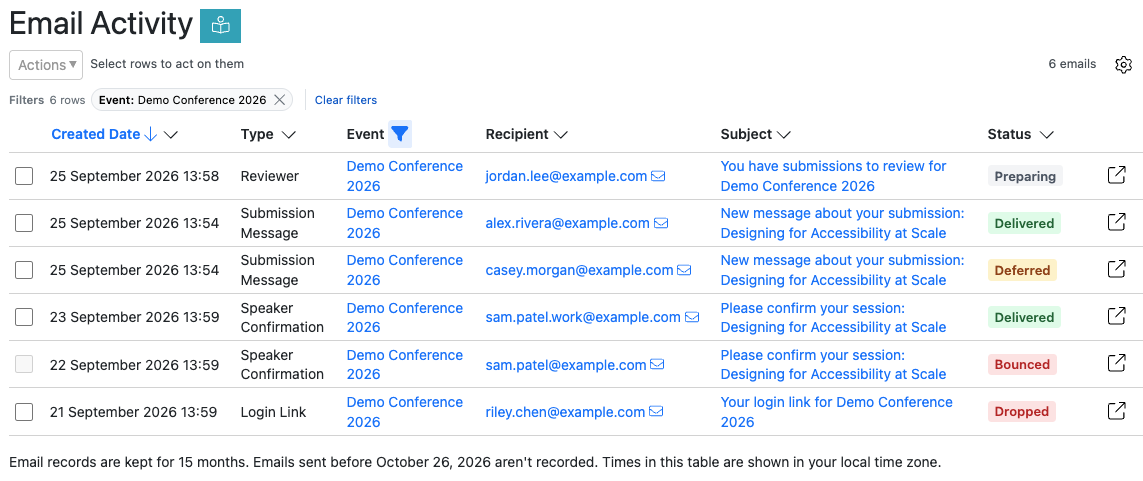
Each row shows an email’s date, recipient, subject, type and current delivery status. You can filter by any of these to find the email you’re looking for.
Because the page shows the contents of emails sent to your speakers, submitters and reviewers, it’s available to team members who can manage an event. Event viewers and reviewers don’t see it. The documentation has the full breakdown by role.
Read the email as it was sent
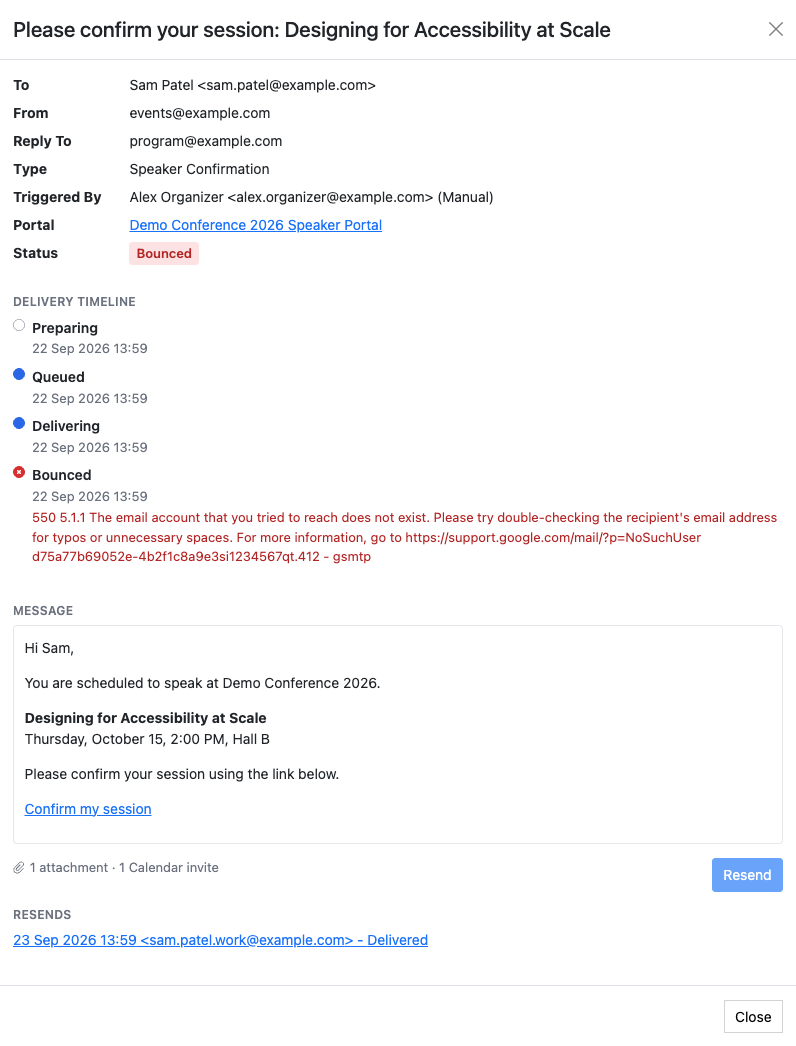
Click an email’s subject, or the open button at the end of its row, to open it. You’ll see who it was sent to and from, its type, who or what triggered it, the portal it came from, and each step of its delivery with the date and time. Any reason given for a delay or a bounce is shown here too.
Below that is the email itself, as it was sent, along with any attachments such as a calendar invite. If the email has been resent, each resend is listed and links to its own details. A resent email links back to the original.
Was it delivered?
Each email shows its current status, such as Delivered, Deferred, Bounced or Marked as Spam. Delivered means the recipient’s mail server accepted the email. Email Activity tracks delivery, not whether an email was opened or its links clicked.
If an email shows as delivered but the recipient says they never got it, it may have been filtered into a junk folder or held by their organization. The documentation covers what to try next.
Resend it
When an email didn’t arrive, open it and click the Resend button below the message. You can send it to the original recipient, or choose someone else: one of the event’s speakers, submitters or reviewers, a single address, or several addresses at once. To resend several emails, select their rows in the Email Activity table and choose Resend from the Actions menu.
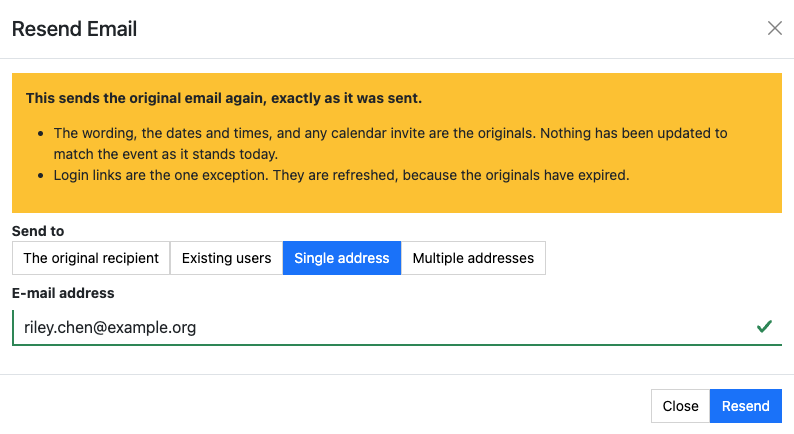
A resend is the original email exactly as it was sent, with any login link replaced by a new one. If you’re sending it to someone else, keep in mind it isn’t rewritten for them, and a login link in it signs them in as the original recipient. The dialog warns you when that’s the case.
Some emails can’t be resent, such as one the recipient reported as spam. Hover over the grayed-out Resend button to see why. The documentation lists them.
Delivery status in message threads
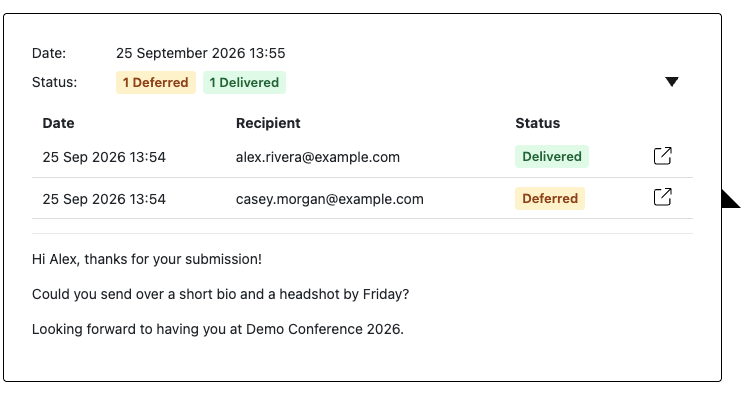
The message threads on a submission, a speaker and a session now show whether each message’s email was delivered. Messages that sent an email have a Status row with a count for each status, for example 1 Deferred 1 Delivered. Click it to see the latest attempt for each address, and click the open button at the end of a row to open that email.
Good to know
- Email records are kept for 15 months and then deleted.
- Emails are recorded from October 26, 2026. Anything sent before then isn’t listed, and older messages in threads have no Status row.
For everything else, see the Email Activity documentation .